Forecast Definition: Cost Layers
To make the forecast more granular and ultimately more useful for Finance, it’s important to reflect the structure of your business. We accomplish this by adding Cost Layers.
How Cost Layers Work
You can build upon the default Cost Layers:
- Production
- Non-Production
- Unallocated
By default, any cloud resources that haven’t been mapped are captured in Unallocated.
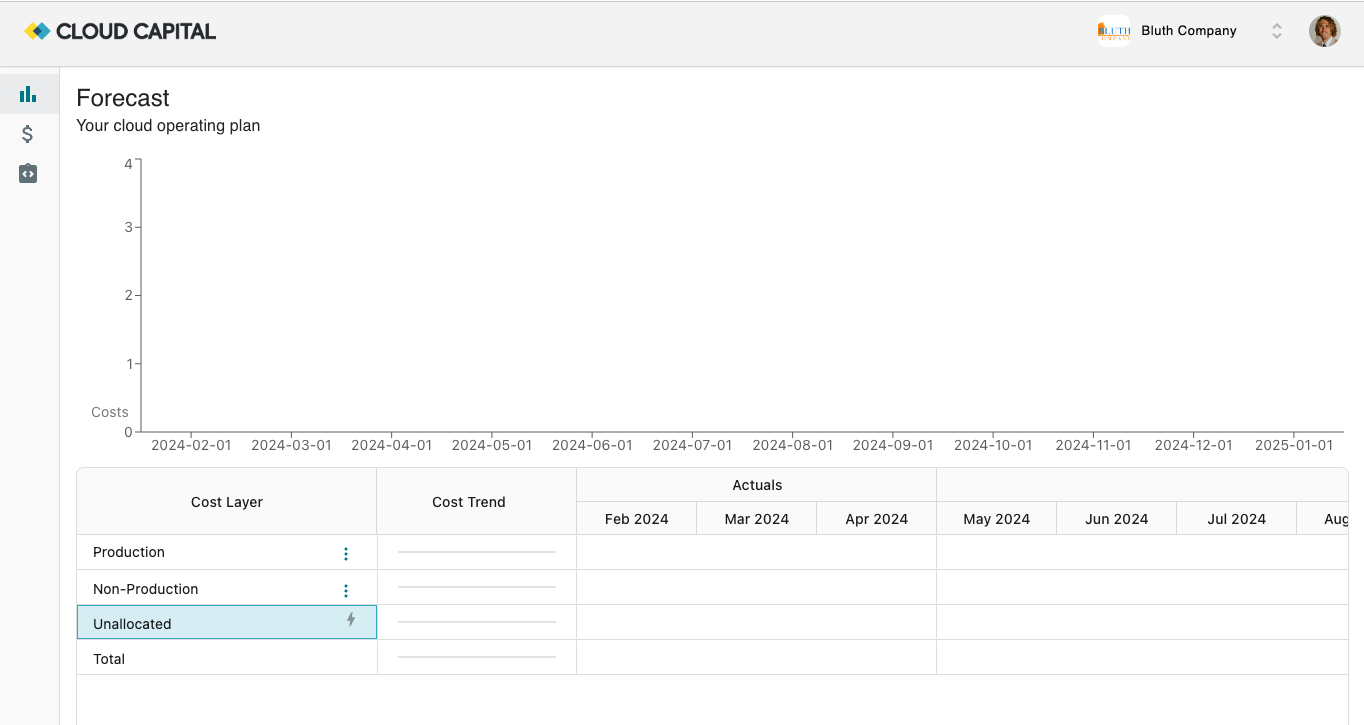
Cost Layers are hierarchical. Within Production and Non-Production, we recommend adding additional layers of granularity to match the way you describe your business. The Cost Layers you create immediately become available to use for Resource Mapping.
Adding a Cost Layer
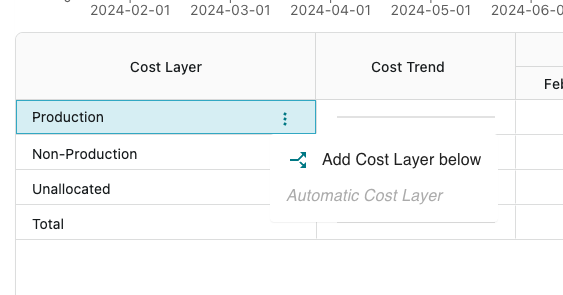
To add a new Cost Layer, click the three dots icon on the desired layer and select “Add Cost Layer Below”.
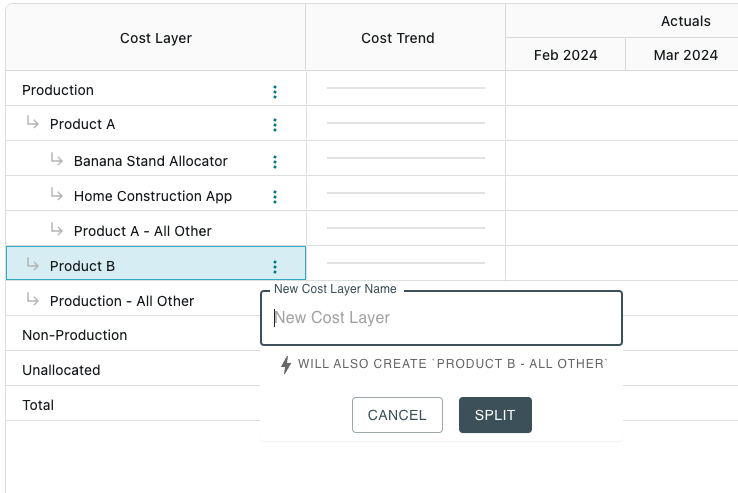
Give the Cost Layer a name and click “Split”.
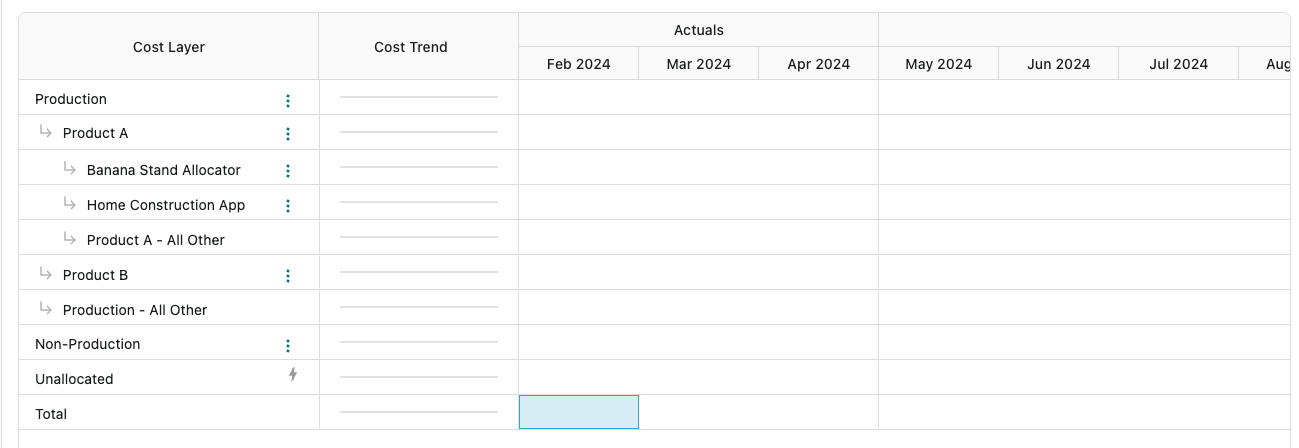
The newly created Cost Layer will appear in the Forecast.

Note: If the addition of this Cost Layer introduced a new level of depth to the forecast, you’ll also notice an “All Other” Cost Layer that’s been created as well. Since resources are only assigned to the lowest tiers of the Cost Layer tree, this captures all spend that was previously assigned to the split Cost Layer.
You can add as many Cost Layers as are required to represent your business.
Forecasts are much more informative when resources are mapped to the correct Cost Layer, so once you’ve created your Cost Layers, be sure to map your resources to Cost Layers that are meaningful to Finance.