Cloud Resource Mapping
Time to complete: ~15 minutes
Goal: Map your Cloud Resources to Production and Non-Production
The goal of this step is to categorize your cloud spend into Production and Non-Production. It is possible to create more detailed cost mappings once your baseline forecast is complete.
Cloud Resource Mapping is a fairly straightforward task, but contributes a great amount of value to your resulting Cloud Capital Forecast. This step provides the context for Cloud Capital understand your cloud costs in the context of your broader business structure.
If you have more than one Cloud Provider Integration, you will complete this step for each of Integration.
Note: If you haven’t already completed AWS Data Integration, please go back and complete that step first.
Every forecast automatically includes three Cost Layers:
- Production
- Non-Production
- Unallocated
By default, any cloud resources that haven’t been mapped are captured in Unallocated.
The goal of this step is to map Cloud Resources to these built-in Cost Layers.
Step 1: Confirm Resource Hierarchy
The first step is inform Cloud Capital about how your Cloud Provider accounts are structured.
-
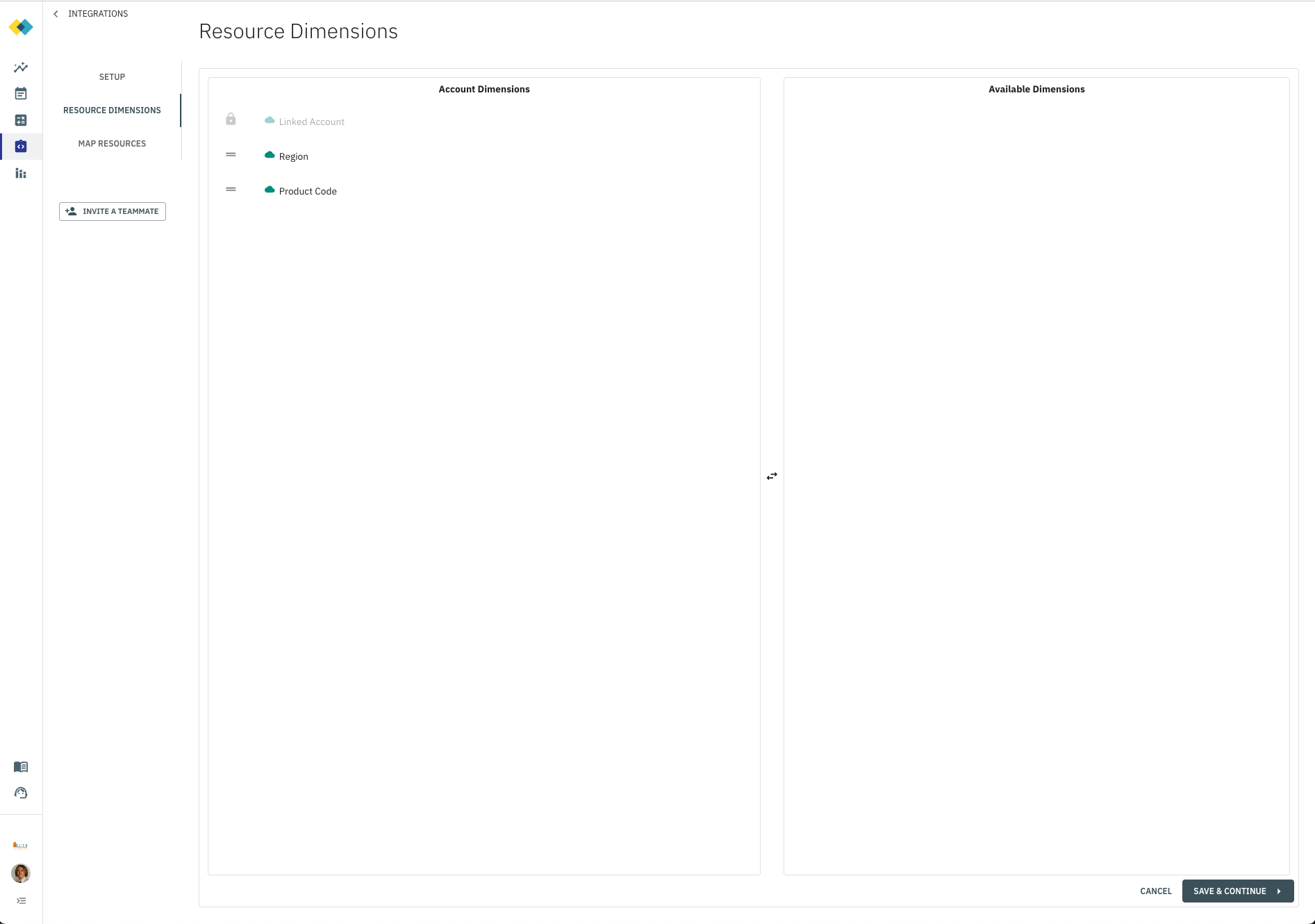
On the Integration you’d like to configure, click “Edit”, then navigate to the “Resource Dimensions” tab.
-
In the Resource Dimensions tab, choose the Dimensions that are relevant to your business by dragging them from the “Available Dimensions” column into the “Account Dimensions” column. Order the columns to reflect the way your think about your resources.
Note: If you have custom tags, this is the step where it is helpful to incorporate them.
Step 2: Assign Cloud Resources to Production and Non-Production
Next we’ll assign your Cloud Resources to the built-in Cost Layers, Production and Non-Production
- Navigate to the “Map Resources” tab.
- Your goal is to assign all spend to either Production or Non-Production.
- It’s best to make assignments at the highest possible level of the hierarchy for a given group of Resources, choose the Cost Layer that they should belong to.
Note: To assist with this process, Cloud Capital provides data on the percent of total spend a node in the Resource tree represents, as well as the portion of that spend that has been allocated to a Cost Layer.
- When all (or most) of your spend is allocated, you have completed this step.
